Registry and Barcodes
Barcodes aren't required in GarmentFlow — but they are an industry standard, and most retailers, distributors, and warehouses expect them. The Registry tab is where you decide how granular the barcodes should be, generate the registry rows, and optionally create stock Items for the finished garments.
Open this tab once your sizes and variants on the Logistics tab are settled — the registry's rows are derived from them.
The tab has two sections: Configure and Barcode Registry.
Configure
Configure is where you decide the granularity of your barcodes. Under the Generate label there are two checkboxes — tick the ones that match what you (or your customer) need:
- By Size — split barcodes by size.
- By Variant — split barcodes by color/variant.
The combinations give you four levels of granularity:
- By Style only (neither box ticked) — one barcode for the entire style.
- By Variant — one barcode per color/variant.
- By Size — one barcode per size.
- By Size and By Variant (both ticked) — one barcode per (size × variant) combination — the most granular option, and the most common when retailers scan at the SKU level.
When the registry is generated, each row uses the Variant Name you set on the Logistics tab — the friendly name (e.g. "Navy Blue") rather than the raw 19-4010 TCX code. The same humanised name flows onto labels, packing lists, and shipping docs.
Barcode Registry
The Barcode Registry is the generated set of rows — one per combination based on your Configure choices. Each row carries three identifier fields, and they are not auto-filled. That is deliberate:
- Barcode — the identifier for the individual product. Industry practice is either to receive barcodes from the customer (brands typically issue their own codes) or to generate them through a service like GS1. GarmentFlow doesn't invent them locally.
- EAN Log — a separate barcode some companies print on the carton or box, so distribution centers can identify the goods inside without opening the box.
- SKU — a fallback code used when a barcode is damaged or unreadable.
Paste or scan the codes into each row once you have them. From there each row is linked to the matching Item (if you create Items — see below), so packing slips, labels, and scanned receipts all reference the same code.
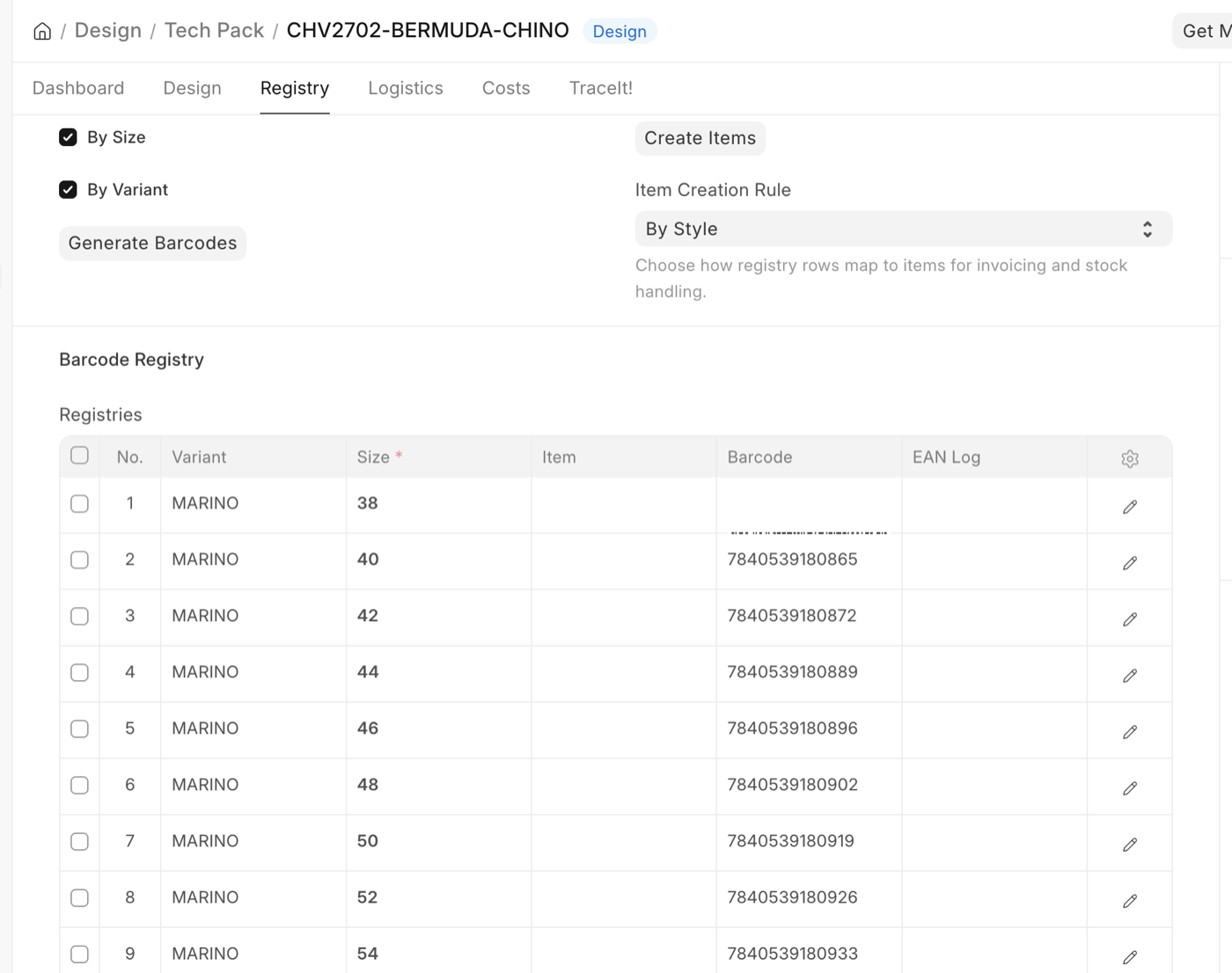
Create Item
Alongside the barcode controls, the Registry tab can optionally create stock Items in the Item master, linked to this Tech Pack. Whether you use this depends on your business model:
- White-label / made-to-order. If you design and manufacture goods and ship 100% of the production to the customer, you don't need to stock the finished garments — skip this.
- Stocked production. If you keep finished garments in your warehouse and need to track how many are left, create the Items so the stock ledger can follow them.
The granularity choices mirror the barcode controls — By Style, By Variant, By Size, or By Size and Variant — and follow the same logic. Pick the level that matches how you actually want to track stock: one Item per size × variant SKU is the most useful for inventory reports, but it also creates the most records to manage.
Why you generate barcodes from the Tech Pack and not from the Item
Because the Tech Pack knows the whole matrix. The Items get created per variant, but if you tried to generate barcodes at the Item level you'd have to manage prefixes, granularity, and codes one variant at a time. From here you do it once for the style.
What to do next
If you haven't already, head to the Costs tab to see what the style is worth now that the spec is firm.